Help / FAQ
How to Transfer Data?
Sign in with the same account after changing the device model to take over the data.
How to check your current account
- In the Home tab, tap the Menu button in the upper left corner
- A menu will open, tap the username in the upper left corner
- Your linked email address will be displayed in the 'E-mail:' field
How to Backup?
It is automatically stored in the cloud.
Transaction records can also be exported as CSV data.
CSV Export Procedure
- Tap the Others tab
- Tap CSV Export/Import
- Select a time period and tap 'CSV Export'
Book data is not displayed
The account you are signed in to may be different.
Please try signing in again with another account to see if your data is restored.
Sign-out procedure
- Tap the menu button
- Tap the user name in the upper left
- Tap Sign Out at the bottom center of the screen
How to Share?
*Both of your partner and you need to sign in this app.
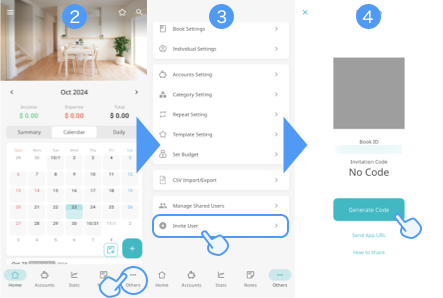
Steps to Invite
- Choose an account book you want to share
- Open the setting page of the account book
- Press "Invite User"
- Generate a Invitation Code
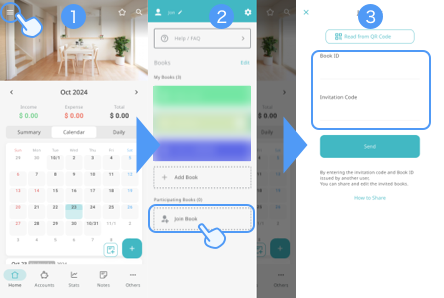
Steps to Join
- Open the Menu
- Press "Join Book"
- Enter the inviter's Book ID and the Invitation Code
I want to input repetitive data.
- Tap the 'Others' tab
- Tap 'Repeat Setting'
- Tap the '+' button in the upper right corner of the repeat list screen
- Enter the transaction you wish to repeat and save it
It is also registered as a repeating transaction by tapping "Repeat" next to the date on the new transaction entry screen.
When will the repetitive registration be done?
The registration process is performed when the book owner launches the app. It will not be registered when the repeat setting is created, but will be registered on the day when the repeat is performed.
Example: Repeated spending on the 10th of every month, spending on May 10 is registered after May 10th.
If the repeat is not registered, please open the app the next day to check.
I want to show the balance carried over to the next month.
Settings Change Balance Display on Calendar Screen
- Open the menu
- Tap the Settings button
- Tap Display Settings
- Change 'Home screen balance display'
The balance doesn't match
The balance is the total of past income/expenses and increases/decreases from transfers.
If the balance doesn't match, please check the following.
<Discrepancy due to future repeating transactions>
Repeating transactions with future dates are reflected in income|expense|total, but not in the balance.
<Discrepancy due to transfers>
If you create a transfer without specifying the destination, it will not be reflected in income/expenses and total, and only the balance will become negative.
Conversely, if you create a transfer without specifying the source, the balance will become positive.
<Discrepancy due to asset owner>
Depending on the balance display type, if the assets specified for income and expense are different, there may be a difference between the total and balance.
For example, if the display type is set to [Assets I own] and you are 'Taro':
・Taro has income of 5000 yen
・Hanako has expense of 2000 yen
Only Taro's income is calculated, so the balance becomes +5000 yen.
<Discrepancy due to assets not counted in the balance>
There is a setting to exclude assets from the balance.
You can check it at More > Asset Settings > Tap an asset.
◆How to check the balance display type
- Home screen > Tap the menu button in the top left
- Tap the Settings button
- Display Settings > Home screen balance display > Display type
◆How to check the asset owner
- More > Asset Settings > Tap an asset
- Tap Owner
How to delete your account
- Tap the menu button in the top left of the home screen
- Tap the user name in the top left
- Tap 'Delete Account'
Error when signing in with Google (Android)
Please check the following
・Go to your device Settings > Apps > Default apps > Browser app > Select 'Chrome'.
・Update the Chrome app to the latest version.